Transferring and Disbanding a Group
This guide will walk you through the steps to either transfer ownership of your group to another member or disband the group permanently.
How to Transfer Group Ownership
Transferring ownership is ideal if you wish to leave the group but want it to continue operating. The group, its members, and all content will be preserved under a new owner.
Prerequisites:
- You must be the current group owner.
- The new owner must already be a member of the group.
Step-by-Step Instructions
- 💻Desktop Users
- 📱Mobile Users
Step 1: Open the group and tap on the current group name at the top of the screen.
Step 2: Scroll down and select "Group Management". And tap on “Assign new group owner”.
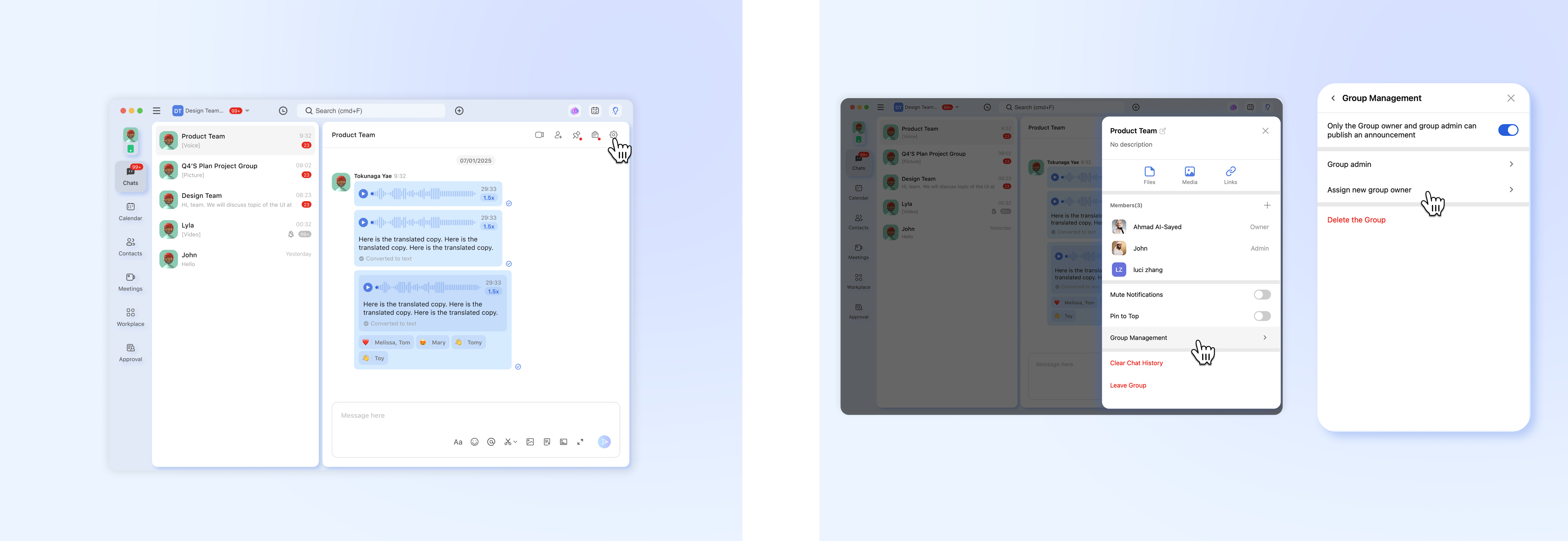
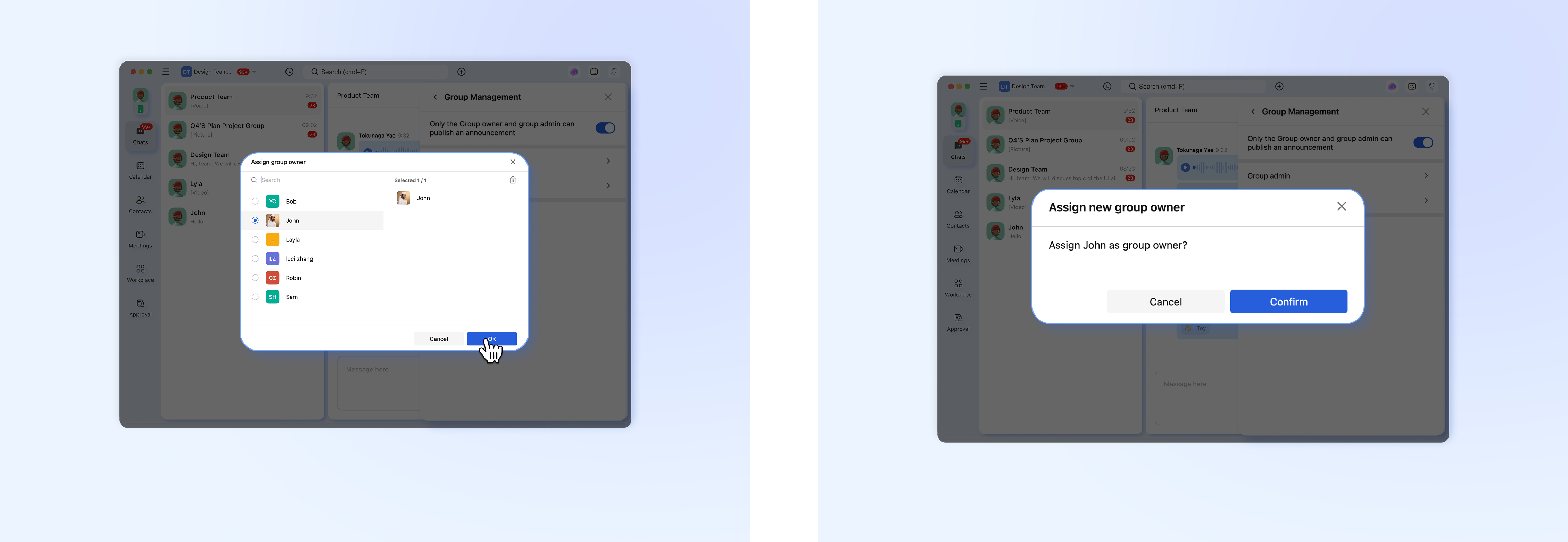
Step 3: You will see a list of current group members. Select the member you want to become the new owner.
Step 4: A confirmation pop-up will appear. It will warn you that this action is irreversible and that you will become a regular member. Read it carefully and confirm by tapping "Confirm".
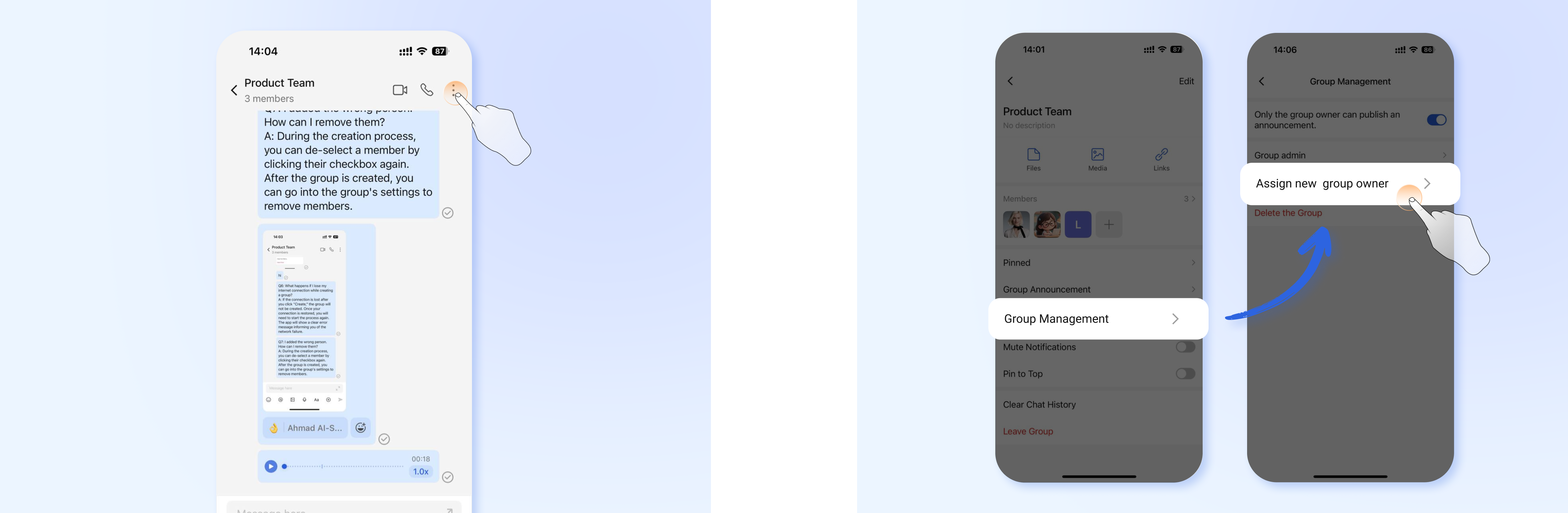
Step 1: Open the group chat. Tap on the group name at the top of the screen.
Step 2: Scroll down and select "Group Management". And tap on “Assign new group owner”.
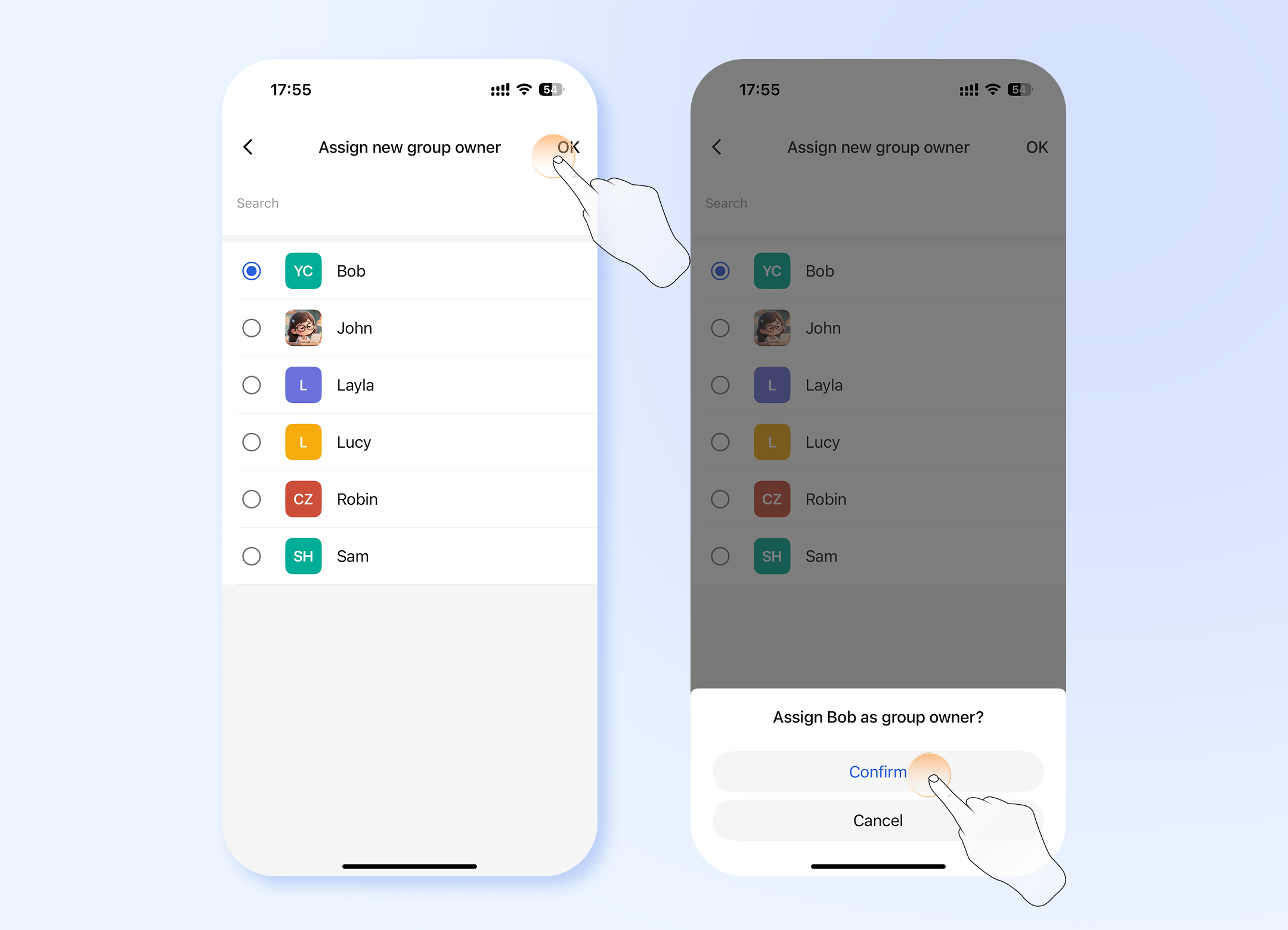
Step 3: Select a member from the list to be the new owner. Step 4: Read the warning and confirm by tapping "Confirm".
✅ Completion: You will see a notification confirming the successful transfer. You are no longer the owner of the group.
How to Disband a Group
Disbanding will permanently delete the group and remove all members. You now have a choice regarding the chat history.
Prerequisites:
- You must be the current group owner.
- 💻Desktop Users
- 📱Mobile Users
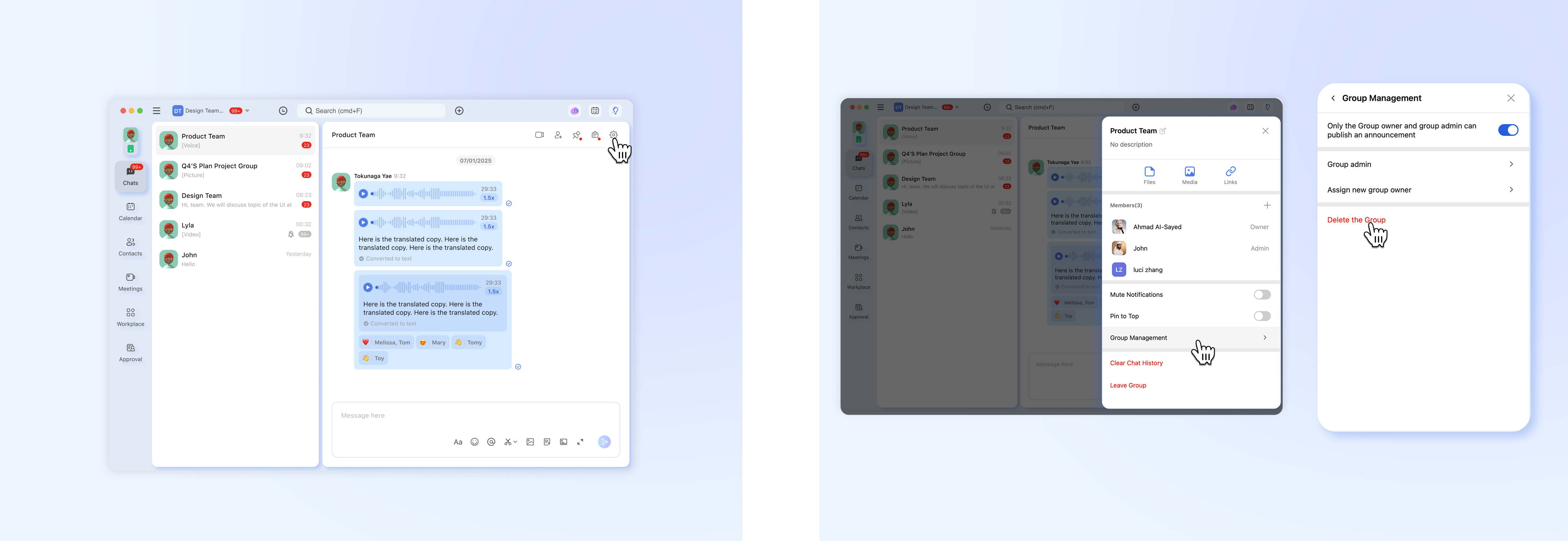
Step 1: Open the group chat. Click the “⚙️” icon in the top-right corner.Step 2: In the sidebar, navigate to the bottom of the "Group Management" section.Step 3: Click on the red text “Delete the Group”.
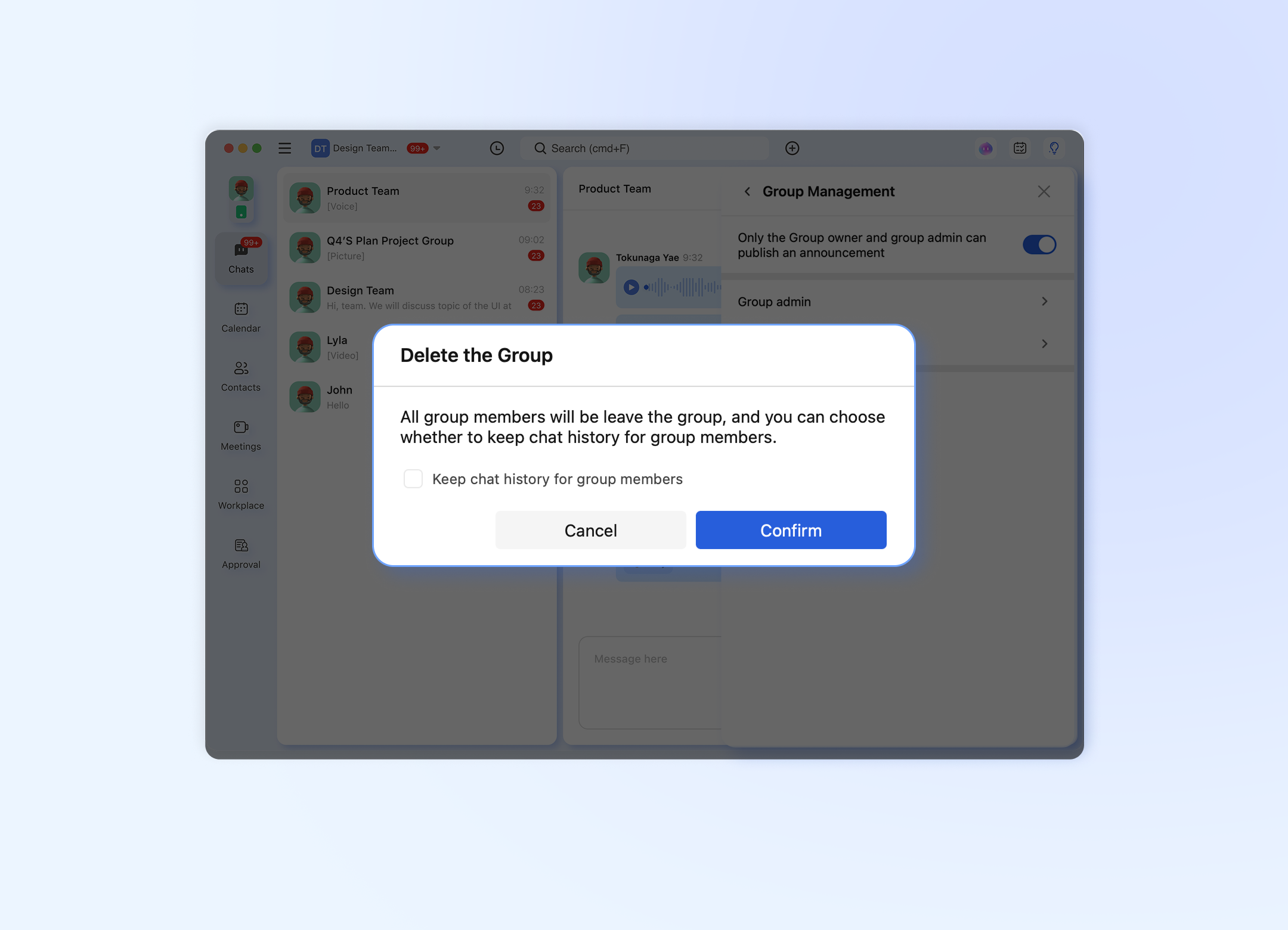
Step 4: A new confirmation pop-up will appear with critical options:
- Checkbox Option: You will see a checkbox for: "Delete chat history for all members" or "Keep history for members".
- If CHECKED : The group will be disbanded, but members will retain a copy of the chat history on their own devices until they manually delete it.
- If UNCHECKED(default): When the group is disbanded, the entire chat history will be wiped for every member.
- Final Confirmation: Read the warning carefully. To proceed, tap the red “Confirm” button.
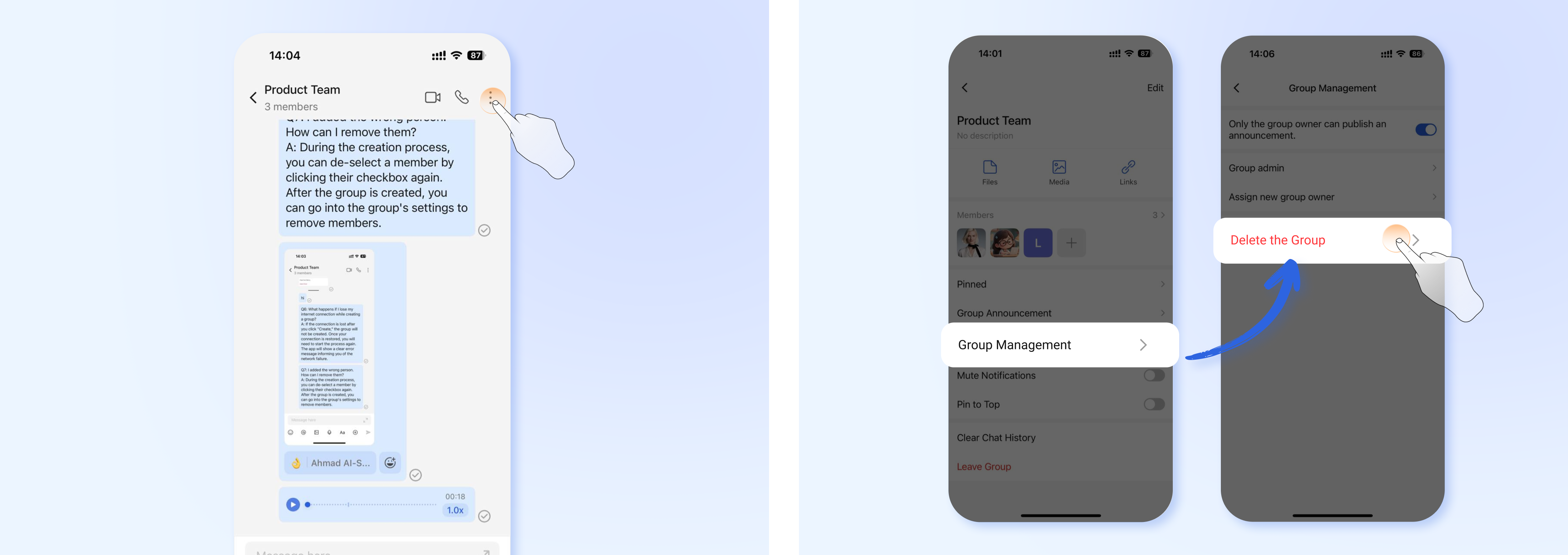
Step 1: Open the group chat. Tap on the group name at the top of the screen. Step 2: Scroll down to "Group Management" Step 3: Tap the red option "Delete the Group".
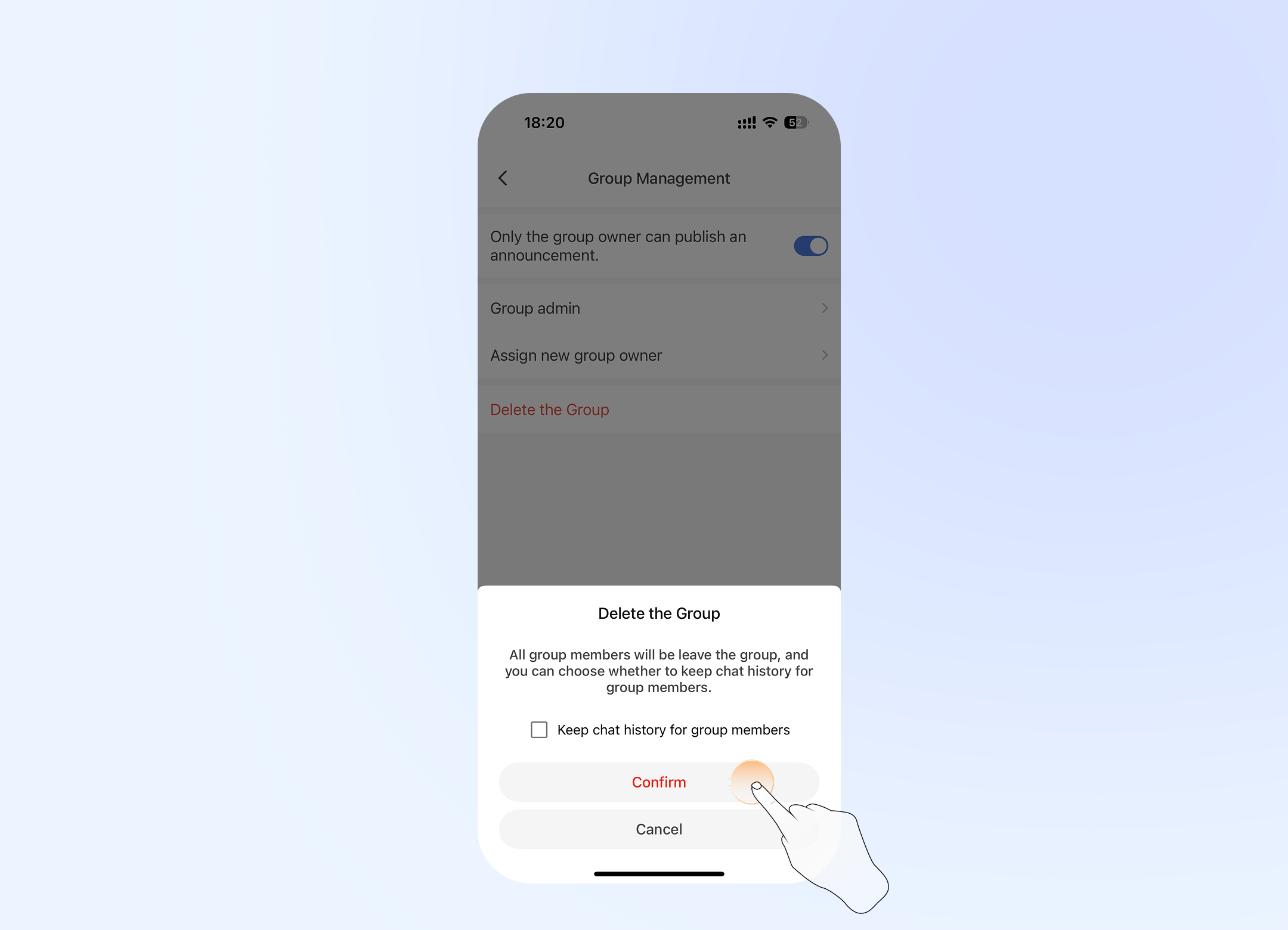
Step 4: A new confirmation pop-up will appear with critical options:
- Checkbox Option: You will see a checkbox for: "Delete chat history for all members" or "Keep history for members".
- If CHECKED : The group will be disbanded, but members will retain a copy of the chat history on their own devices until they manually delete it.
- If UNCHECKED(default): When the group is disbanded, the entire chat history will be wiped for every member.
- Final Confirmation: Read the warning carefully. To proceed, tap the red “Confirm” button.
Summary: What Happens After?
| Action | The Group... | You Become... | Members... | Data & Chat History... |
|---|---|---|---|---|
| Assign | Continues to exist | A regular member | Remain in the group | Preserved |
| Disband (Delete history) UNCHECKED | Is permanently deleted | N/A | Are removed from the group | Permanently deleted for everyone |
| Disband (Keep history) CHECKED | Is permanently deleted | N/A | Are removed from the group | Preserved locally on each membe |
Please choose carefully!
Frequently Asked Questions (FAQ)
Q1: Can I take back the ownership after I transfer it?
A: No. The transfer of ownership is immediate and irreversible. The only way to get it back is to ask the new owner to transfer it back to you voluntarily. Please choose the new owner very carefully.
Q2: What's the difference between “Delete” and just “Leave” the group?
A: They are completely different:
- Leave: Only you leave the group. The group continues to exist with the remaining members. You will no longer receive messages from this group.
- Delete: You, as the owner, permanently delete the group for everyone. All members are removed and the group ceases to exist.
Q3: If I choose to "Keep history for members" when disbanding, can I see new messages?
A: No. Disbanding the group immediately stops all communication. Members will only be able to scroll up and read the history that existed before the disbandment. No one can send new messages.
Q4: I can't find the "Disband Group" option. Why?
A: The most common reason is that you are not the current owner of the group. Only the group owner has the permission to disband it. If you are the owner, please check the "Group Management" section carefully, as the option is usually at the very bottom.
Q5: Can a transferred or disbanded group be recovered?
A: - Transferred Group: Yes, the group itself is still active. You just need to contact the new owner.
- Disbanded Group: No. Once you confirm the disband action, the group and all its data (if you chose to delete history) are permanently deleted and cannot be recovered by any member or customer support.